After updating the OS on a Mac Mini to 10.12.6 and downloading Server.app 5.3.1 we encountered an error:
It turns out that not all OS/Server.app versions allow direct updates; in some cases you must do a data migration. Apple posts an upgrade matrix here.
The quick fix, if you don't mind configuring the server again, is to simply trash the Server.app from Applications and remove the /Library/Server folder. Once this has been done, you can re-install Server.app and it will launch the configuration manager.
If you get the "unable to update server" error and you need to keep your settings then you are in for a bumpy ride. You have no choice but to do a data migration between two devices. The procedure is explained in the same link as above and entails building a new system, target booting, doing a data migration and then installing Server.app. Honestly, Apple couldn't have made it any harder if they tried.
Showing posts with label OS X. Show all posts
Saturday, August 19, 2017
Thursday, June 30, 2016
Excel 2016: Spell Check Causing Applicaiton Lock
Office 2016 has been very unstable. Microsoft is tacitly admitting as much by releasing a steady stream of updates.
One of the persistent problems has been the spell check function in Excel. Simply put, when you attempted to spell check a worksheet, the application would lock-up. After a failed spell check, quitting the application normally was impossible; the only way to shut Excel down was to Force Quit it.
The spell check issue persisted despite the ongoing MS updates. I myself experienced the problem on two separate MBPs and after no less than six removals and reinstalls. Eventually I found a procedure that seems to have resolved the spell-check nightmare:
One of the persistent problems has been the spell check function in Excel. Simply put, when you attempted to spell check a worksheet, the application would lock-up. After a failed spell check, quitting the application normally was impossible; the only way to shut Excel down was to Force Quit it.
The spell check issue persisted despite the ongoing MS updates. I myself experienced the problem on two separate MBPs and after no less than six removals and reinstalls. Eventually I found a procedure that seems to have resolved the spell-check nightmare:
- Drag all MS Office 2016 documents to the trash
- Go to ~/Library/Group Containers and delete the following files
- *.office
- *.ms
- *.officeosfwebhost
- Empty trash
- Restart and re-install Office 2016 (applying all updates)
Labels:
Excel,
Mac,
Microsoft,
Office 2016,
OS X,
spell-check
Wednesday, September 17, 2014
Device Signature Error when attempting to install packages through Casper
When attempting to install printers (and other packages) some Macs (10.9.x) would report an error "Device Signature Error-A valid device signature is required to perform the action." The helpful folks at JAMF Nation provided the following fix:
In ARD push out the following commands:
launchctl stop com.apple.apsd
rm /Library/Keychains/apsd.keychain
launchctl start com.apple.apsd
After the commands have been applied, Recon the machine again. You should now be able to install packages.
In ARD push out the following commands:
launchctl stop com.apple.apsd
rm /Library/Keychains/apsd.keychain
launchctl start com.apple.apsd
After the commands have been applied, Recon the machine again. You should now be able to install packages.
Wednesday, October 30, 2013
Microsoft Lync Keeps Requesting a Keychain Password for OC_KeyContainer
We have received several reports that Microsoft Lync (version 14.x) was constantly requesting a Keychain Password and displaying the following dialogue box:
The blocked out area shows the user's e-mail address.
On working systems there was an "OC_KeyContainer" in Keychain:
As well as a saved password in Keychain:
On system that had a problem these items were missing.
The solution we found was to go into ~/Library/Keychains and delete the "OC_KeyContainer_[user's e-mail address].
Remember that on 10.7 and above the user's library folder is hidden and you must show it by opening Terminal and typing "chflags nohidden /Users/[user's home folder name]/Library
After deleting the OC_KeyContainer file, launch Lync and log in and you should no longer receive the Keychain pop-up.
If you open Keychain Access.app you will notice that a new OC_KeyContainer Keychain and password have been created.
Note: if the OC_KeyContainer Keychain and password already exist in Keychain Access.app, delete them before removing the file from the user's Library folder.
The blocked out area shows the user's e-mail address.
On working systems there was an "OC_KeyContainer" in Keychain:
As well as a saved password in Keychain:
On system that had a problem these items were missing.
The solution we found was to go into ~/Library/Keychains and delete the "OC_KeyContainer_[user's e-mail address].
Remember that on 10.7 and above the user's library folder is hidden and you must show it by opening Terminal and typing "chflags nohidden /Users/[user's home folder name]/Library
After deleting the OC_KeyContainer file, launch Lync and log in and you should no longer receive the Keychain pop-up.
If you open Keychain Access.app you will notice that a new OC_KeyContainer Keychain and password have been created.
Note: if the OC_KeyContainer Keychain and password already exist in Keychain Access.app, delete them before removing the file from the user's Library folder.
Monday, October 14, 2013
Macs Unable to Connect to Secure Sites: OCSPD File Deleted
We received a report that 400+ Macs in two countries and a dozen locations were suddenly unable to login. A quick fix was to remove the network cable, log in using the locally cached credentials and then plug the Ethernet cable back in. However, the users were then unable to connect to any web-page using https, Outlook mail (using OWA) or any other connection that required secure communication.
All the Macs were bound to AD and being managed by Casper.
We soon found that by removing the JAMF binary we were able to log in but we still could not access any secure resources. This made sense because at login/start-up the computer attempts to talk to the JSS and if secure communication is not possible the computer will hang.
Working with Apple Alliance Support (excellent as always) we were able to determine that the root of the problem lay in the fact that all the computers were missing the ocspd file from /usr/sbin/. The ocspd file is used during certificate validation and if it is missing or corrupt a secure connection can not be established.
Using Composer we created packages to deploy new ocspd files. Note: you must install like-for like, i.e. a good ocspd file from a 10.7.5 Mac must be deployed to another 10.7.5 Mac.
Unfortunately within a few minutes of deploying a new ocspd file, it was deleted. After more digging through logs we found that it was a JAMF process that was causing the deletion so we removed the JAMF binary from all the Macs, pushed the good ocspd packages using ARD and it resolved the issue.
After the good ocspd packages are deployed, remove all the old computers from the JSS, ensure that a valid push-notification certificate is installed and that "enable certificate-based communication" is ticked in the framework settings of the JSS. You should then be able to re-Recon all your Macs and the ocspd file will not be removed. TEST FIRST on a few Macs!
If you suspect this issue the first thing to do is go to /usr/sbin and see if the ocspd file is missing. If it is you must replace it with a known good ocspd file. As described above, the easiest way to do this is with Casper Composer but if you do not have a copy of it you can do the following steps and deploy using ARD.
sudo chmod 755 /usr/sbin/ocspd
All the Macs were bound to AD and being managed by Casper.
We soon found that by removing the JAMF binary we were able to log in but we still could not access any secure resources. This made sense because at login/start-up the computer attempts to talk to the JSS and if secure communication is not possible the computer will hang.
Working with Apple Alliance Support (excellent as always) we were able to determine that the root of the problem lay in the fact that all the computers were missing the ocspd file from /usr/sbin/. The ocspd file is used during certificate validation and if it is missing or corrupt a secure connection can not be established.
Using Composer we created packages to deploy new ocspd files. Note: you must install like-for like, i.e. a good ocspd file from a 10.7.5 Mac must be deployed to another 10.7.5 Mac.
Unfortunately within a few minutes of deploying a new ocspd file, it was deleted. After more digging through logs we found that it was a JAMF process that was causing the deletion so we removed the JAMF binary from all the Macs, pushed the good ocspd packages using ARD and it resolved the issue.
After the good ocspd packages are deployed, remove all the old computers from the JSS, ensure that a valid push-notification certificate is installed and that "enable certificate-based communication" is ticked in the framework settings of the JSS. You should then be able to re-Recon all your Macs and the ocspd file will not be removed. TEST FIRST on a few Macs!
If you suspect this issue the first thing to do is go to /usr/sbin and see if the ocspd file is missing. If it is you must replace it with a known good ocspd file. As described above, the easiest way to do this is with Casper Composer but if you do not have a copy of it you can do the following steps and deploy using ARD.
- Copy a good ocspd file to /usr/sbin/ to the non-working system
- Set ownership and permissions:
sudo chmod 755 /usr/sbin/ocspd
- Once the file has been copied and permissions applied the issue should be resolved- no reboot is required
Thursday, September 26, 2013
Casper not Correctly Setting Software Update Server
We have received hundreds of reports that 10.8.4 Macs have been updating themselves to 10.8.5 even if they are managed by a local Software Update Server and the 10.8.5 update has not been authorized.
Although we do not have a single root cause, the problem definitely lies within the configurations being distributed (or not) by Casper. Based on the conversations we have been having with Apple, Jamf and our agencies here are a few recommendations for your Casper set up:
If you want Casper to collect the SUS a client is pointed to add the Extension Attribute "Apple Software Update Server" and replace the default script contents with:
#!/bin/sh
SWU=`defaults read /Library/Preferences/com.apple.SoftwareUpdate CatalogURL`
echo "$SWU "
Lastly if you want to brute-force the SUS settings to your computers, remove all references to the SUS from Casper policies, MCX, Configuration Profiles and Network Segments and deploy a script that contains these lines:
#!/bin/sh
defaults delete /Library/Preferences/com.apple.SoftwareUpdate CatalogURL
defaults write /Library/Preferences/com.apple.SoftwareUpdate CatalogURL http://[your SUS server.yourCompany.com]:8088/index.sucatalog
killall Terminal
Although we do not have a single root cause, the problem definitely lies within the configurations being distributed (or not) by Casper. Based on the conversations we have been having with Apple, Jamf and our agencies here are a few recommendations for your Casper set up:
- Set the Software Update Server through MCX for 10.6.8 Macs or a Configuration Profile for 10.7 and 10.8 Macs
- In the "Overwrite Default Policy Settings" area of any Software Update policy you have created use the pull-down next to "Software Update Server" to select "Each Computer's Default Server"
- Put a tick in "Set Server System Wide" (under Settings/Servers/Software Update Server) after you have done the above should correctly set the SUS for the managed clients on your subnets
- You could also set the default SUS in any Network Segments you have created (Settings/Update Network Segments) and it should set the correct SUS if you run a policy with just "Set Server" ticked in Packages/Set Server.
If you want Casper to collect the SUS a client is pointed to add the Extension Attribute "Apple Software Update Server" and replace the default script contents with:
#!/bin/sh
SWU=`defaults read /Library/Preferences/com.apple.SoftwareUpdate CatalogURL`
echo "
Lastly if you want to brute-force the SUS settings to your computers, remove all references to the SUS from Casper policies, MCX, Configuration Profiles and Network Segments and deploy a script that contains these lines:
#!/bin/sh
defaults delete /Library/Preferences/com.apple.SoftwareUpdate CatalogURL
defaults write /Library/Preferences/com.apple.SoftwareUpdate CatalogURL http://[your SUS server.yourCompany.com]:8088/index.sucatalog
killall Terminal
Error opening terminal: xterm-256color
After opening a remote ssh session to Lion and Mountain Lion clients and attempting to launch pico (I know, I know, "real men use vi") I get the following error:
"Error opening terminal: xterm-256color"
Here is the fix (must be run from Terminal on the machine itself):
"Error opening terminal: xterm-256color"
Here is the fix (must be run from Terminal on the machine itself):
- Open Terminal
- Type "pico ~/.profile" (if it doesn't exist go ahead and create it)
- Enter the lines:
- TERM="xterm"
- export TERM
- Exit and save
Saturday, March 2, 2013
High CPU usage with Lync and Outlook 2011
We have received numerous reports that having Lync and Outlook 2011 open at the same time is causing one, or both, of the processes to use 100% of the CPU. This in turn causes Outlook to become unresponsive until you force quit either Outlook or Lync. Having the applications open separately does not cause a problem- only when they are both open at the same time.
To troubleshoot the problem, open Lync, go to Preferences/General and put a tick in "Turn on logging for troubleshooting". Restart Lync and then Open Outlook and Process Viewer. Work normally until Outlook freezes and you see in Process Viewer that the CPU use for Lync and/or Outlook has spiked.
Close (or force quit) Outlook and Lync and open Console Viewer.
In Console Viewer, under Files/~/Library/Logs open the Microsfot-Lync-0.log. Search the log for multiple (hundreds) of entries referencing the same e-mail address and having an "INFO" line of "FindOrCreateFakeContactModelForQuery"
Open Outlook and remove all references to the offending e-mail account. This includes contacts and any auto-complete entries.
To clear the auto-complete entries, open a new mail and start typing the user's name; a box should open that displays the e-mail address; to the right will be an "X". Click on the "X" to remove the entry.
Relaunch Outlook, open Lync and check that you no longer experience the high CPU problem.
When you are sure the problem has been resolved, make sure you turn off logging in Lync.
To troubleshoot the problem, open Lync, go to Preferences/General and put a tick in "Turn on logging for troubleshooting". Restart Lync and then Open Outlook and Process Viewer. Work normally until Outlook freezes and you see in Process Viewer that the CPU use for Lync and/or Outlook has spiked.
Close (or force quit) Outlook and Lync and open Console Viewer.
In Console Viewer, under Files/~/Library/Logs open the Microsfot-Lync-0.log. Search the log for multiple (hundreds) of entries referencing the same e-mail address and having an "INFO" line of "FindOrCreateFakeContactModelForQuery"
Open Outlook and remove all references to the offending e-mail account. This includes contacts and any auto-complete entries.
To clear the auto-complete entries, open a new mail and start typing the user's name; a box should open that displays the e-mail address; to the right will be an "X". Click on the "X" to remove the entry.
Relaunch Outlook, open Lync and check that you no longer experience the high CPU problem.
When you are sure the problem has been resolved, make sure you turn off logging in Lync.
Monday, February 18, 2013
Mountain Lion Server: An SSL error has occurred and a secure connection to the server cannot be made
After a recent Server.app update I was unable to log into a Mountain Lion server.
I deleted Server.app from the Applications folder and downloaded it again from the App Store. When I launched Server.app after the download it asked for the administrator credentials and then displayed the error "An SSL error has occurred and a secure connection to the server cannot be made."
My solution was to open Keychain Access, click on "System" (under Keychains) and then "Keys" (under Categories) and delete all the keys referencing my server name. This includes both public and private keys so OS X will prompt if you really, really, want to do it.
I also removed the certificates for the server under System/My Certificates as well as "com.apple.servermgrd".
I crossed my fingers and restarted the server. I logged in as local admin, launched Server.app and was able to configure it normally. After the server was up and running I looked in Keychain Access and all the certificates had been re-populated.
Apple's KB on the problem wins the prize for the least helpful tech note ever. You can see for yourself here: http://support.apple.com/kb/TS4493. All they suggest is upgrading to Server 2.2.1. Guess what I was running when I encountered the error? 2.2.1. What upgrade locked me out of my server? 2.2.1. Thanks guys!
I deleted Server.app from the Applications folder and downloaded it again from the App Store. When I launched Server.app after the download it asked for the administrator credentials and then displayed the error "An SSL error has occurred and a secure connection to the server cannot be made."
My solution was to open Keychain Access, click on "System" (under Keychains) and then "Keys" (under Categories) and delete all the keys referencing my server name. This includes both public and private keys so OS X will prompt if you really, really, want to do it.
I also removed the certificates for the server under System/My Certificates as well as "com.apple.servermgrd".
I crossed my fingers and restarted the server. I logged in as local admin, launched Server.app and was able to configure it normally. After the server was up and running I looked in Keychain Access and all the certificates had been re-populated.
Apple's KB on the problem wins the prize for the least helpful tech note ever. You can see for yourself here: http://support.apple.com/kb/TS4493. All they suggest is upgrading to Server 2.2.1. Guess what I was running when I encountered the error? 2.2.1. What upgrade locked me out of my server? 2.2.1. Thanks guys!
Labels:
10.8,
Keychain,
Mountain Lion,
OS X,
OS X server,
Server.app,
SSL
Saturday, February 2, 2013
Safari Oracle Java Blocking: RESOVED
Oracle has released Version 7 Update 13 build 1.7.0_13-b20 that addresses the security concerns outlined in this Apple KB: http://support.apple.com/kb/HT5647
The Oracle Java update can be downloaded here: http://java.com/en/download/mac_download.jsp?locale=en
Users who have been unable to access Juniper VPN and other web-based Java apps from Mac clients should download and install the patch, this should restore functionality.
The Oracle Java update can be downloaded here: http://java.com/en/download/mac_download.jsp?locale=en
Users who have been unable to access Juniper VPN and other web-based Java apps from Mac clients should download and install the patch, this should restore functionality.
Friday, February 1, 2013
Safari Blocking Oracle 7.11.21 Plug-in: Can't Connect to Juniper VPN
The war between Apple and Java continues. Apple is blocking the latest Java saying that it is susceptible to malware.
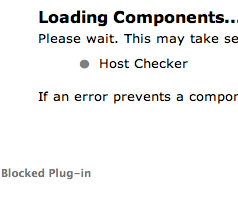
We have received several reports that Mountain Lion clients are unable to contact the Juniper VPN launch page. The users are presented with an error that says "Blocked Plug-in":

They may also be prompted that Java is out of date and that they should download Java:
They are then redirected to the Oracle download page. Even after they download the latest Java, they will still see the "Blocked Plug-in" error. The cause of this error appears to be Apple's anti-malware protection.
The only work-around we have found is to do the following:
Go to /System/Library/CoreServices/CoreTypes.bundle/Contents/Resources/
Type "sudo pico XProtect.meta.plist"
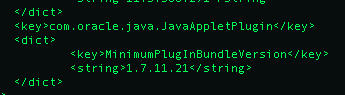
Look for the line "MinimumPlugInBundleVersion"
Note that the version is set to 1.7.11.22 but the latest version of Oracle Java is 1.7.11.21. This prevents the browser from loading the current Oracle Java because it says the minimum version is .22 but the latest is currently .21
It is possible to edit the "MinimumPlugInBundleVersion" and change the minimum value to 1.7.11.21:

After making the change, save the file, restart Safari and go to the VPN page- you should be able to log in.
Not only is this affecting Juniper VPN but several of our other web-based Java apps.
We have received several reports that Mountain Lion clients are unable to contact the Juniper VPN launch page. The users are presented with an error that says "Blocked Plug-in":

They may also be prompted that Java is out of date and that they should download Java:
They are then redirected to the Oracle download page. Even after they download the latest Java, they will still see the "Blocked Plug-in" error. The cause of this error appears to be Apple's anti-malware protection.
The only work-around we have found is to do the following:
Go to /System/Library/CoreServices/CoreTypes.bundle/Contents/Resources/
Type "sudo pico XProtect.meta.plist"
Look for the line "
Note that the version is set to 1.7.11.22 but the latest version of Oracle Java is 1.7.11.21. This prevents the browser from loading the current Oracle Java because it says the minimum version is .22 but the latest is currently .21
It is possible to edit the "

After making the change, save the file, restart Safari and go to the VPN page- you should be able to log in.
Not only is this affecting Juniper VPN but several of our other web-based Java apps.
Wednesday, November 7, 2012
Recon failed during the submit process. Could not recognize the JSS response
After upgrading to JSS 8.6 a site noticed that none of the Jamf binaries on the clients were being updated.
When we attempted to Recon the Macs again the process would fail with a message "Error enrolling computer. Could not recognize the JSS response."
We would receive the same error no matter what method we used to get the computer into inventory: local Recon, Quick-Add Package, command line enrolment, etc.
From the screen-shot it would seem that the problem had to do with the client or server's certificate. However, after renewing the JSS' certificate, double-checking that it was valid and that existing clients could communicate with the JSS we were at a loss to explain why Recon was failing.
The answer was both simple and completely crazy. It seems that if there is a non-standard character in the "Display message to User:" field in Restricted Software it causes Recon to fail with the above mentioned error.
The text of the original message: Este software no está permitido en la red corporativo
After changing "está" to "esta" we were able to Recon computers normally.
How bizarre is that?
A big thanks to Derek at Jamf support for figuring out the problem. We would have spent years hunting for a fix on our own.
When we attempted to Recon the Macs again the process would fail with a message "Error enrolling computer. Could not recognize the JSS response."
We would receive the same error no matter what method we used to get the computer into inventory: local Recon, Quick-Add Package, command line enrolment, etc.
From the screen-shot it would seem that the problem had to do with the client or server's certificate. However, after renewing the JSS' certificate, double-checking that it was valid and that existing clients could communicate with the JSS we were at a loss to explain why Recon was failing.
The answer was both simple and completely crazy. It seems that if there is a non-standard character in the "Display message to User:" field in Restricted Software it causes Recon to fail with the above mentioned error.
The text of the original message: Este software no está permitido en la red corporativo
After changing "está" to "esta" we were able to Recon computers normally.
How bizarre is that?
A big thanks to Derek at Jamf support for figuring out the problem. We would have spent years hunting for a fix on our own.
Friday, October 19, 2012
10.7 and 10.8 Clients do not generate Kerberos tickets at login: FIX
(For information about forcing 10.6.x clients to get a Kerberos ticket at login see this Apple KB)
We have encountered a problem where Lion and Mountain Lion clients are not generating Kerberos tickets at login. This causes problems with single-sign-on (SSO) to network shares as well as with Kerberos enabled applications like SAP.
Apparently Apple's latest version of Kerberos will not automatically request a ticket when a Kerberos enabled application launches. Instead you must either go to Terminal and type "kinit" and enter your password or force a ticket to be generated at login using the following instructions.
Note: in order to correctly authenticate using Kerberos enabled applications like SAP your user name in AD and in the application itself must match. This means that both your SAMAccount name and UPN in must be identical- including the case. Many non-Microsoft instances of Kerberos are case-sensitive.
To generate a Kerberos ticket at login (10.7 and 10.8 clients):
We have encountered a problem where Lion and Mountain Lion clients are not generating Kerberos tickets at login. This causes problems with single-sign-on (SSO) to network shares as well as with Kerberos enabled applications like SAP.
Apparently Apple's latest version of Kerberos will not automatically request a ticket when a Kerberos enabled application launches. Instead you must either go to Terminal and type "kinit" and enter your password or force a ticket to be generated at login using the following instructions.
Note: in order to correctly authenticate using Kerberos enabled applications like SAP your user name in AD and in the application itself must match. This means that both your SAMAccount name and UPN in must be identical- including the case. Many non-Microsoft instances of Kerberos are case-sensitive.
To generate a Kerberos ticket at login (10.7 and 10.8 clients):
- Open Terminal
- Type "sudo -s" and authenticate as super user
- Navigate to /etc/pam.d
- Type "cp authorization authorization.bak" to make a backup of the authorization file
- Type "pico authorization" to edit the file (you could also use vi or your favourite editor)
auth optional pam_krb5.so use_first_pass use_kcminitAdd the key "default_principal" to the end of the line. For example:
auth optional pam_krb5.so use_first_pass use_kcminit default_principal
- Save the file
- Restart and log back into the computer
- Check that a Kerberos ticket has been generated by opening Terminal and typing "klist"
Hosting Mountain Lion Software Updates on 10.6 or 10.7 Servers
This information came directly from Apple's KB:
- Update your server to Mac OS X Server v10.6.8 (or 10.7)
- Stop the Software Update service if it is running.
- Quit Server Admin if it is active.
- Update /etc/swupd/swupd.plist to begin hosting OS X Lion software updates. (See details below.)
- Update /etc/swupd/swupd.conf to allow OS X Lion computers to receive updates. (See details below.)
- Open Server Admin and start the Software Update service.
- Use the instructions in Mac OS X Server v10.6: Using the Software Update service with multiple Mac OS X client versions to point your OS X Lion clients to this server.
For Mountain Lion change the string to:
In step 5, you will need root access to update the file /etc/swupd/swupd.conf. To be safe, make a backup copy of the file before editing it. Locate the following line near the end of the file:
Edit the following line to read:
Monday, September 5, 2011
How to configure a hidden account that has ARD access and also must request control from the user
I was asked to create a hidden account that had remote control access through ARD but that also had to request permission from the user before being allowed access to the computer
Running the following in ARD/Unix using the root account will create a hidden standard account called "hidden", set the password to "Hidden123", turn on "request permissions to observe/control" and add the account to the Remote Management "allowed users" list:
dscl . -create /Users/hidden
dscl . -create /Users/hidden UserShell /bin/bash
dscl . -create /Users/hidden RealName "hidden"
dscl . -create /Users/hidden UniqueID 499
dscl . -create /Users/hidden PrimaryGroupID 1000
dscl . -create /Users/hidden NFSHomeDirectory /Local/Users/hidden
dscl . -passwd /Users/hidden Hidden123
/System/Library/CoreServices/RemoteManagement/ARDAgent.app/Contents/Resources/kickstart -activate -configure -access -on -users hidden -privs -none -clientopts -setreqperm -reqperm yes
A "UniqueID" lower than 500 will create a hidden account.
To remove the account (run as root through ARD):
dscl . -delete /Users/hidden
This works for Leopard and Snow Leopard
Running the following in ARD/Unix using the root account will create a hidden standard account called "hidden", set the password to "Hidden123", turn on "request permissions to observe/control" and add the account to the Remote Management "allowed users" list:
dscl . -create /Users/hidden
dscl . -create /Users/hidden UserShell /bin/bash
dscl . -create /Users/hidden RealName "hidden"
dscl . -create /Users/hidden UniqueID 499
dscl . -create /Users/hidden PrimaryGroupID 1000
dscl . -create /Users/hidden NFSHomeDirectory /Local/Users/hidden
dscl . -passwd /Users/hidden Hidden123
/System/Library/CoreServices/RemoteManagement/ARDAgent.app/Contents/Resources/kickstart -activate -configure -access -on -users hidden -privs -none -clientopts -setreqperm -reqperm yes
A "UniqueID" lower than 500 will create a hidden account.
To remove the account (run as root through ARD):
dscl . -delete /Users/hidden
This works for Leopard and Snow Leopard
Labels:
account configuration,
Apple Remote Desktop,
ARD,
DSCL,
OS X,
Snow Leopard,
Terminal
Tuesday, April 5, 2011
Outlook 2011 Profiles Disappearing
There have been some reports that when a user launches Outlook their profile is no longer there. It seems to have something to do with the database daemon thinking the user's database has vanished.
Here is one reported work-around:
- Keep Outlook open
- Go to Terminal
- Type, ps aux | grep Microsoft
- Look for the MS Office 2011 processes
- Note the number after the user name- this is the Process ID (PID)
- In Terminal type, sudo kill –9 [PID number]
- Do this for each of the Microsoft processes
- Re-launch Outlook
Saturday, December 18, 2010
Bound Leopard Server not allowing SMB or AFP connections
Problem: A 10.5.8 server was not allowing SMB or AFP connections. The server was bound to AD but "id" commands were failing- sometimes.
Looking at the logs I saw that they were filled with launchd errors:
com.apple.launchd[1] (org.openldap.slapd): Throttling respawn: Will start in 10
These were causing very, very poor performance and pretty much preventing Directory Service from operating; that in turn prevented any logins.
The first thing I attempted was to unbind the server but as it couldn't connect to the domain I did a Force Unbind, deleted the edu.mit.kerberos file and the Directory Services folder and restarted. I then re-bound the server and immediately unbound: this ensured that the server's AD account would be removed.
From the unbound server I took these actions:
com.apple.launchd[1] (org.openldap.slapd): Throttling respawn: Will start in 10
These were causing very, very poor performance and pretty much preventing Directory Service from operating; that in turn prevented any logins.
The first thing I attempted was to unbind the server but as it couldn't connect to the domain I did a Force Unbind, deleted the edu.mit.kerberos file and the Directory Services folder and restarted. I then re-bound the server and immediately unbound: this ensured that the server's AD account would be removed.
From the unbound server I took these actions:
- Changed the Windows role to Standalone server
- Stopped the SMB services
- Opened Terminal and ran "sudo –s /usr/libexec/slapd –Tt"
This returned:
could not stat config file "/etc/openldap/slapd.conf": No such file or directory (2)
slaptest: bad configuration file!
could not stat config file "/etc/openldap/slapd.conf": No such file or directory (2)
slaptest: bad configuration file!
I then viewed the contents of the directory: cd /etc/openldap/ls
There was no slapd.conf file present but there was a slapd.conf.default file so I renamed it: "cp slapd.conf.default slapd.conf"
I then re-ran the slapd command: "/usr/libexec/slapd –Tt" and it returned:
bdb_db_open: Warning - No DB_CONFIG file found in directory /private/var/db/openldap/openldap-data: (2)
Expect poor performance for suffix dc=my-domain,dc=com.
config file testing succeeded
Since LDAPv3 is turned off in Directory Services this shouldn't be a problem
- Reboot
- Launch Server Manager
- Change the Windows role to Domain Member
- Start the SMB service
AFP and SMB log-ins now worked.
These steps and more info can be found here: http://discussions.apple.com/message.jspa?messageID=10613310
Labels:
"OS X server",
AFP,
Kerberos,
launchd,
Leopard Server,
OS X,
SMB
Thursday, December 9, 2010
Can not log in to bound Mac using an AD account
Symptom
A Mac that has been bound to the AD will not allow log-in from a particular AD user. Other AD accounts are able to log-into the bound Mac and the user can log-into other computers.
This is generally a symptom of a corrupt account on the computer. You have several options to remedy the situation.
Solutions
Scenario One: You are migrating a local account to a domain account. You have bound the computer and are attempting to log in for the first time using the user's AD account and you get a shaking log in or an error "you are unable to log into the user's account". Follow these steps to create a new local account, migrate the user’s data to that account then create an AD account and migrate the data to the AD account.
Scenario Two: Sometimes having a UNC path to a home folder in AD prevents a user from logging in. In this case the user can not log into any Mac but loggin into a PC works.
Open the user's AD account and go to the Profile tab. If there is a UNC path to a home folder, remove it. Wait for replication and attempt to log in again.
Scenario Three: You have bound the computer and are attempting to log in for the first time using the user's AD account and you get a shaking log in or an error "you are unable to log into the user's account".
Other users can log in using their AD accounts. Checking System Preferences/Users DOES NOT show an account for the user that is unable to log in.
It is possible that the AD profile was partially created but that the process failed somewhere along the way. You first need to check if the profile exists on the computer even though it is not in "Users".
http://support.apple.com/kb/DL1071
After you have installed Admin Tools follow these steps to remove the problem account:
A Mac that has been bound to the AD will not allow log-in from a particular AD user. Other AD accounts are able to log-into the bound Mac and the user can log-into other computers.
This is generally a symptom of a corrupt account on the computer. You have several options to remedy the situation.
Solutions
Scenario One: You are migrating a local account to a domain account. You have bound the computer and are attempting to log in for the first time using the user's AD account and you get a shaking log in or an error "you are unable to log into the user's account". Follow these steps to create a new local account, migrate the user’s data to that account then create an AD account and migrate the data to the AD account.
- Log in as root
- Unbind the computer and delete the entire /Library/Preferences/Directory Service folder and the edu.mit.kerberos file
- Restart the computer
- Log in as root
- Go to System Preferences/Accounts
- Create a new local account for the user
- Do not use the same name as the user’s AD account
- Do not use the same name as the existing account
- Go to Users and locate the user’s old home folder
- Select all the folders in the old home folder and drag them into the new home folder for the account you just created. When it prompts you select Replace All
- Go back to the Desktop hit Shift-Apple-U to open the Utilities folder
- Launch Terminal
- Type cd /Users
- Type chown –R [user name]:staff /Users/[user name]. For example: chown –R tsmith:staff /Users/mlewis
- Remember, you are doing the above command on the newly created home folder- the one you copied all the data into
- Use the newly created account name for “user name”
- Re-bind the computer
- Log out and then back in with the user’s AD account
- This will create a new blank profile
- Log out and back in as root
- Go to Users and locate the local home folder you created in a previous step (the one you moved all the data into and did a “chown” on)
- Select all the folders in the folder and drag them into the newly create home folder (it will have the user’s AD name) When it prompts you select Replace All
- Go back to the Desktop hit Shift-Apple-U to open the Utilities folder
- Launch Terminal
- Type cd /Users
- Type chown –R [user name]:staff /Users/[user name]. For example: chown –R tom.smith:staff /Users/tom.smith
- Log out and back in using the user’s AD account credentials
- Their desktop icons should appear
- Go to Users/[user name]/Library/Keychains and rename the login.keychain to login.keychain.old
Scenario Two: Sometimes having a UNC path to a home folder in AD prevents a user from logging in. In this case the user can not log into any Mac but loggin into a PC works.
Open the user's AD account and go to the Profile tab. If there is a UNC path to a home folder, remove it. Wait for replication and attempt to log in again.
Scenario Three: You have bound the computer and are attempting to log in for the first time using the user's AD account and you get a shaking log in or an error "you are unable to log into the user's account".
Other users can log in using their AD accounts. Checking System Preferences/Users DOES NOT show an account for the user that is unable to log in.
It is possible that the AD profile was partially created but that the process failed somewhere along the way. You first need to check if the profile exists on the computer even though it is not in "Users".
- Open a Terminal window
- Type "dscl localhost"
- Type "cd /Local/Default/Users
- Type "ls"
- If the problem user's account is displayed you must remove it
http://support.apple.com/kb/DL1071
After you have installed Admin Tools follow these steps to remove the problem account:
- Go to Applications/Server
- Launch Workgroup Manager (WGM)
- At the connection screen enter an address of "localhost" and the UID and password of the local machine administrator
- In WGM click on the "Accounts" icon
- Make sure you are authenticated to /Local/Default
- Click on the single-user icon above the search menu
- Find the problem account in the list and click on the "Delete" icon
- Exit WGM and attempt to log into the machine again with the user's AD account
Labels:
AD,
can't login,
login,
Mac,
Mac Binding,
OS X,
shaky login
Thursday, July 22, 2010
Thursday, August 6, 2009
Mac: Kerberos time-outs and locked screen saver
This is an interesting little glitch.
On AD bound Macs if a user has their screen-saver set to require a password to deactivate and the user leaves their computer on for more than 10 hours, they will not be able to unlock the screen-saver. Apple has confirmed that this is a problem and advises that the user should enter their user name and password and then wait for one minute before they press “OK.”
This affects all versions of OS X through 10.5.7. The latest 10.5.8 patch is supposed to fix the issue.
The default time-out for a Kerberos ticket is 10 hours but with the screen-saver password lock enabled the Mac doesn’t auto renew the ticket properly. Normally every time you unlock your screen-saver it refreshes the Kerberos ticket back to 10 hours but this simply doesn’t happen if they machine has been sitting on and idle for over 10 hours.
On AD bound Macs if a user has their screen-saver set to require a password to deactivate and the user leaves their computer on for more than 10 hours, they will not be able to unlock the screen-saver. Apple has confirmed that this is a problem and advises that the user should enter their user name and password and then wait for one minute before they press “OK.”
This affects all versions of OS X through 10.5.7. The latest 10.5.8 patch is supposed to fix the issue.
The default time-out for a Kerberos ticket is 10 hours but with the screen-saver password lock enabled the Mac doesn’t auto renew the ticket properly. Normally every time you unlock your screen-saver it refreshes the Kerberos ticket back to 10 hours but this simply doesn’t happen if they machine has been sitting on and idle for over 10 hours.
Subscribe to:
Posts (Atom)